Occasionally, a course is merged in Brightspace, combining sections into one course. For instance, initially you could have the following:
2025F.1.MUSL.3100.01
2025F.1.MUSL.3100.02
But then they get merged into this:
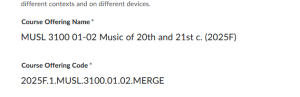
2025F.1.MUSL.3100.01.02.MERGE
In Alma / Leganto, the courses come across as individual courses and currently there is not a way for these “MERGE”‘d courses to be pushed to Alma so we need to make some manual adjustments. To do this, do the following:
- Create a course shell for the MERGE course. The easiest way to do this is to go to Alma, search for the course, click on “More Actions” and select “Duplicate”:

- In the “Manage Course Information” screen that pops up, change the Code field & Name field to what is found in Brightspace and update the Number of participants to 0:


- After that is done, go to Reading Lists (in Alma) and search for the Course. If a list has already been started, then just rename that list to match what is in Brightspace and Purge the other list:

- After this, you can view the reading list within Leganto, or to be sure the link is working in Brightspace:


If you have any questions about this, please feel free to submit an INFORM at https://inform.library.vanderbilt.edu/.