Managing expired holds
(below provided by Florida Virtual Campus)
- To view and manage expired holds, select “Expired Hold Shelf” from the Fulfillment menu.
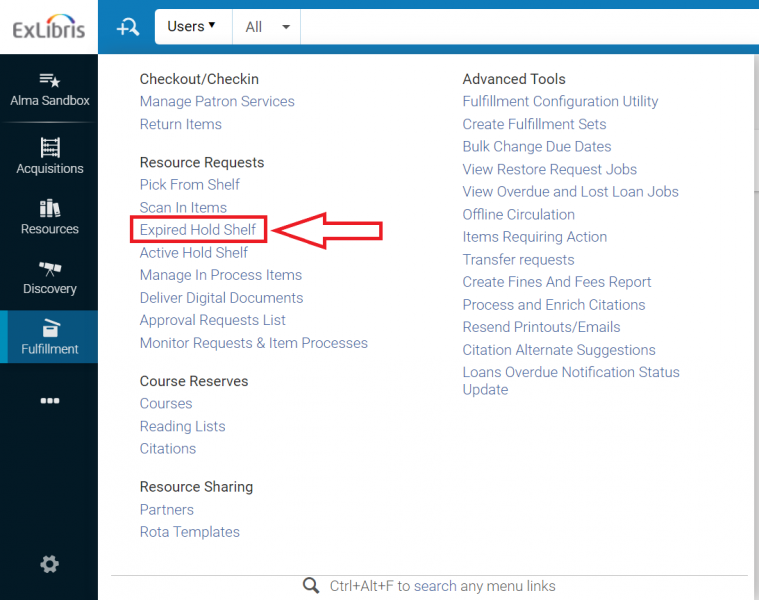
- The Expired Hold Shelf Items screen will open. Actions you can take from this screen include:
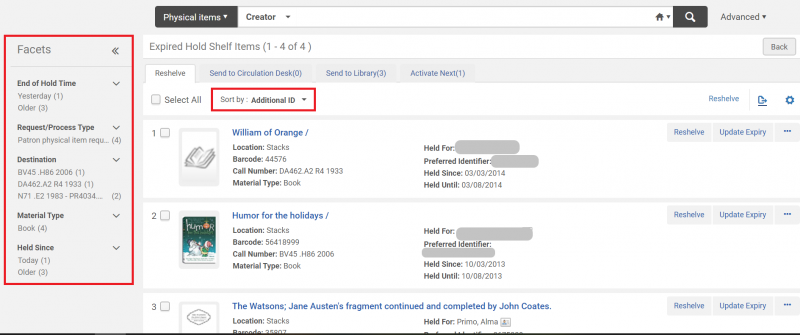
- Sorting or filtering items. You can click on options under “Facets” or choose an option from the “Sort by” drop down menu to filter or sort the items that have expired on the hold shelf.
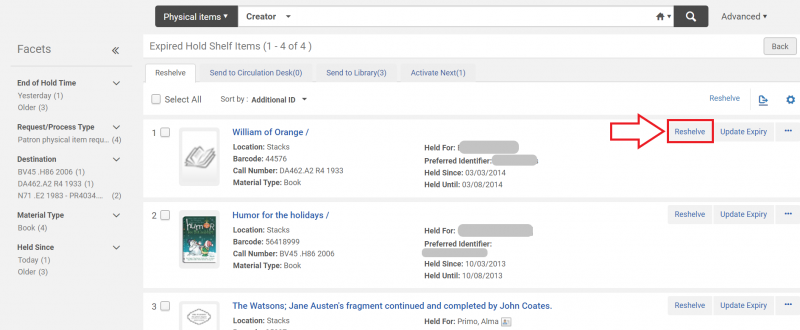
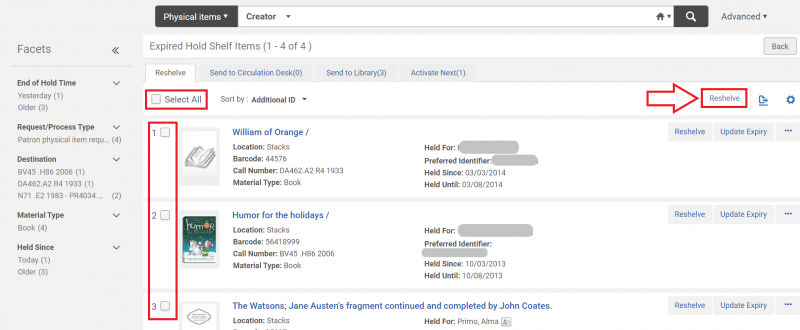
- Sending items to be reshelved. Items that are expired and can be reshelved are found under the “Reshelve” tab. To convert an item’s location status in Alma from the hold shelf to in place, there are two methods:
- Clicking the “Reshelve” button for each item you wish to remove from the hold shelf.
- Clicking the “Select All” box or the individual item selection boxes, and then clicking the “Reshelve” option located above the list of items.
- Clicking the “Reshelve” button for each item you wish to remove from the hold shelf.
- Updating the expiration date. You can extend an item’s stay on the hold shelf by clicking the “Update Expiry” button and choosing a date sometime in the future.
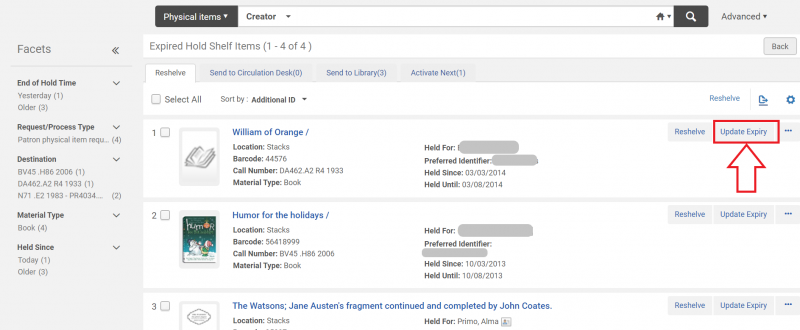
- Editing the item hold, marking the item as missing, or viewing the audit trail. These options can be found in the drop down menu deployed by clicking on the ellipsis.

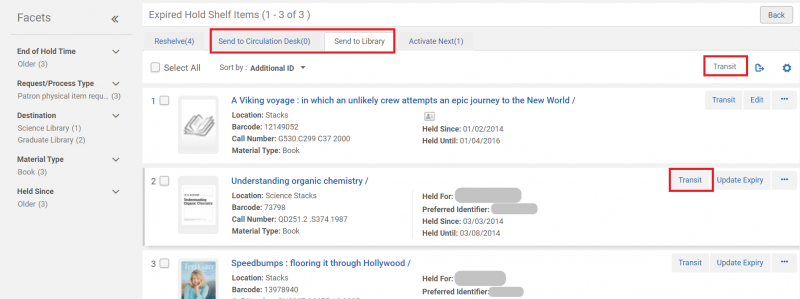
- Forwarding items to another circulation desk or library. If an item has expired on the hold shelf and should be forwarded to another circulation desk or library, it will appear under the “Send to Circulation Desk” or “Send to Library” tabs. This function operates in a manner similar to the Reshelve function, but in this case you will click “Transit” instead of “Reshelve”.
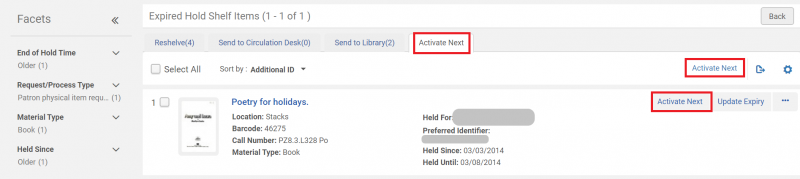
- Activating the next hold on an item. If an item on the hold shelf has other patrons waiting for it to become available, it will appear under the “Activate Next” tab. This function operates in a manner similar to the Reshelve function, but in this case you will click “Activate Next” instead of “Reshelve”.
- Sorting or filtering items. You can click on options under “Facets” or choose an option from the “Sort by” drop down menu to filter or sort the items that have expired on the hold shelf.