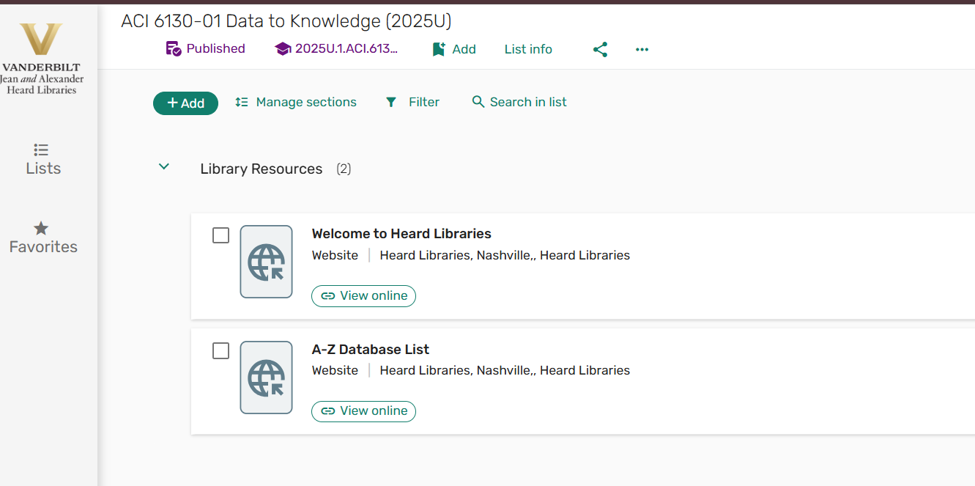
In Brightspace, if an instructor has intentionally removed the “Readings/Resources” navigation link on top and wants to place it somewhere else, they cannot just copy a URL link. It has to be done using the External Link option:
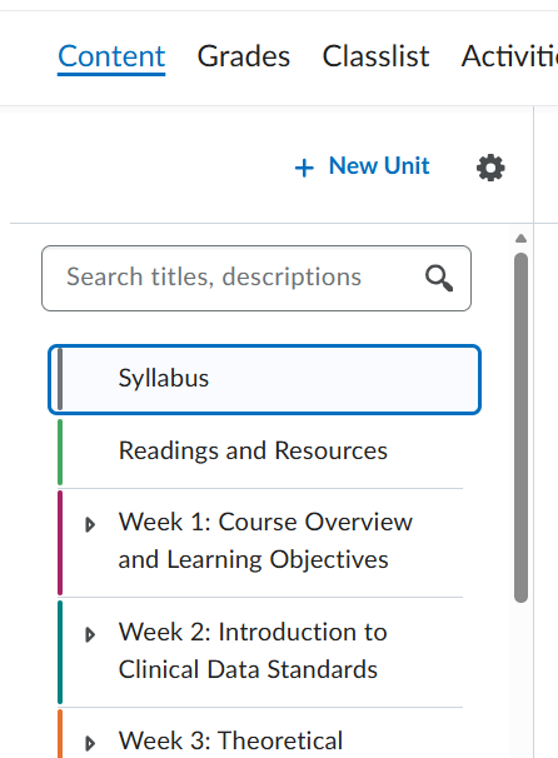
STEP 1: First you need to figure out where the link should live if not in the Navigation bar at the top. Normally, if not on top, it would be included on the left navigation under “Content”:
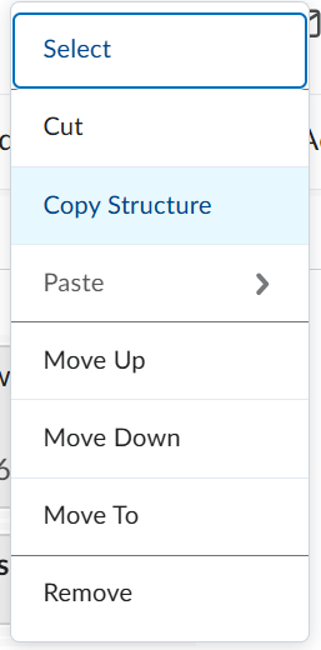
STEP 2 : go to Course Admin -> Course Builder -> duplicate one of the sections (i.e.., “Copy Structure”):
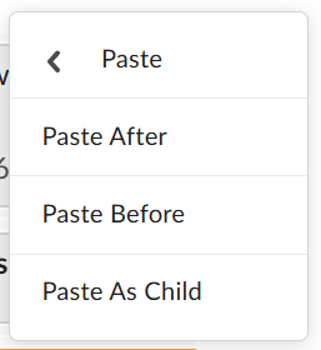
STEP 3 : Then Paste (depending on where you want it, After or Before – I like to do Before to try to put the reading list first):
STEP 4 : Then click the copied section in order to make it active and in the right select, “Edit Module”:
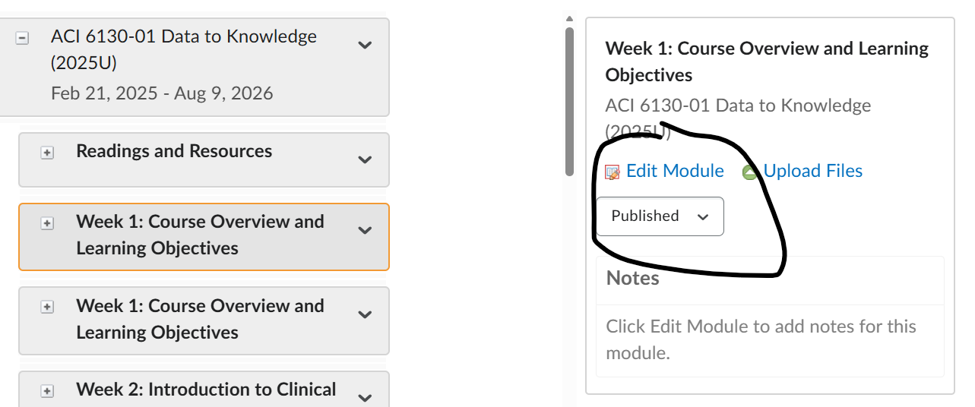
STEP 5 : Change the name to Readings/Resources or something that you think would be meaningful to the students and erase anything in the Notes field:
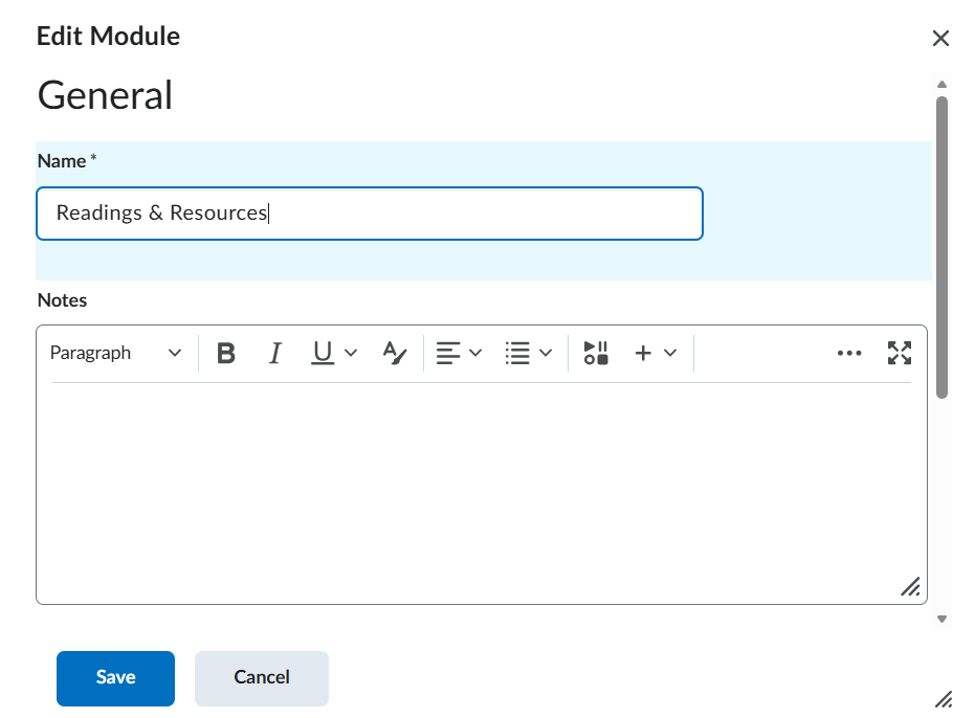
Then click “Save”.
STEP 6 : Then click on the Content navigation and select the new “Readings & Resources” option:
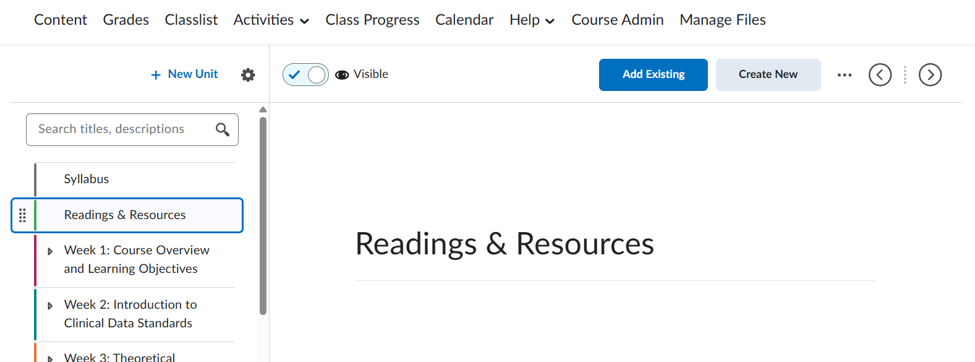
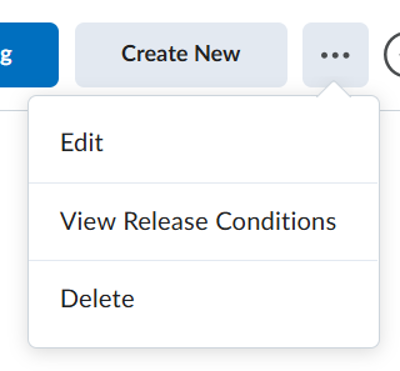
STEP 7 : Click on the ellipses and select “Edit”:
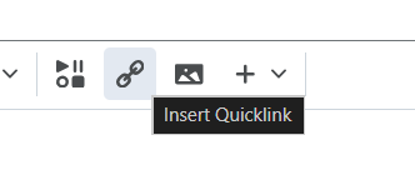
STEP 8 : In the Description box, in the toolbar, click the button for “Insert Quicklink”
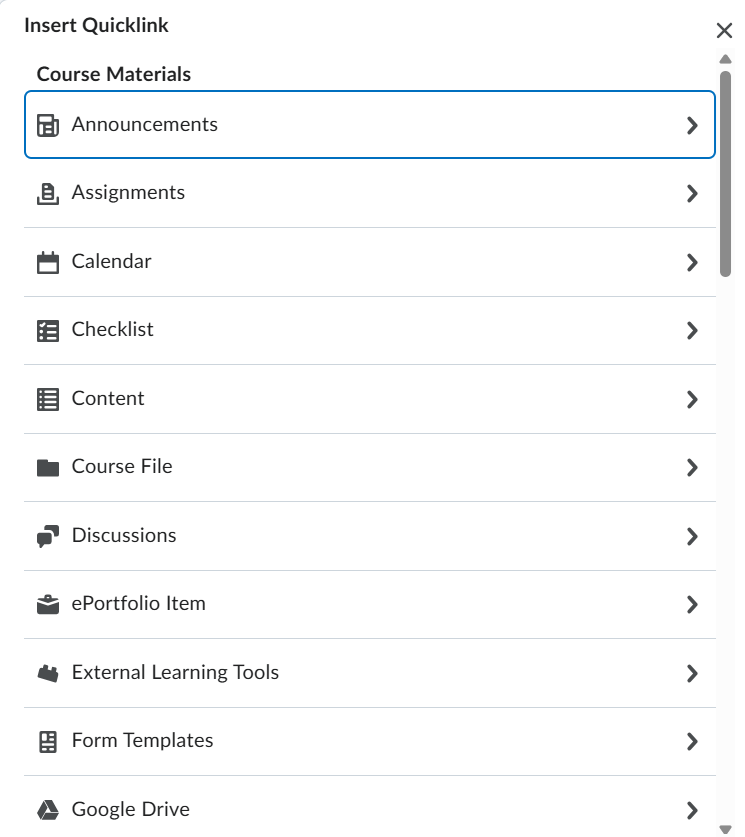
STEP 9 : Then select “External Learning Tools” from the drop-down menu:
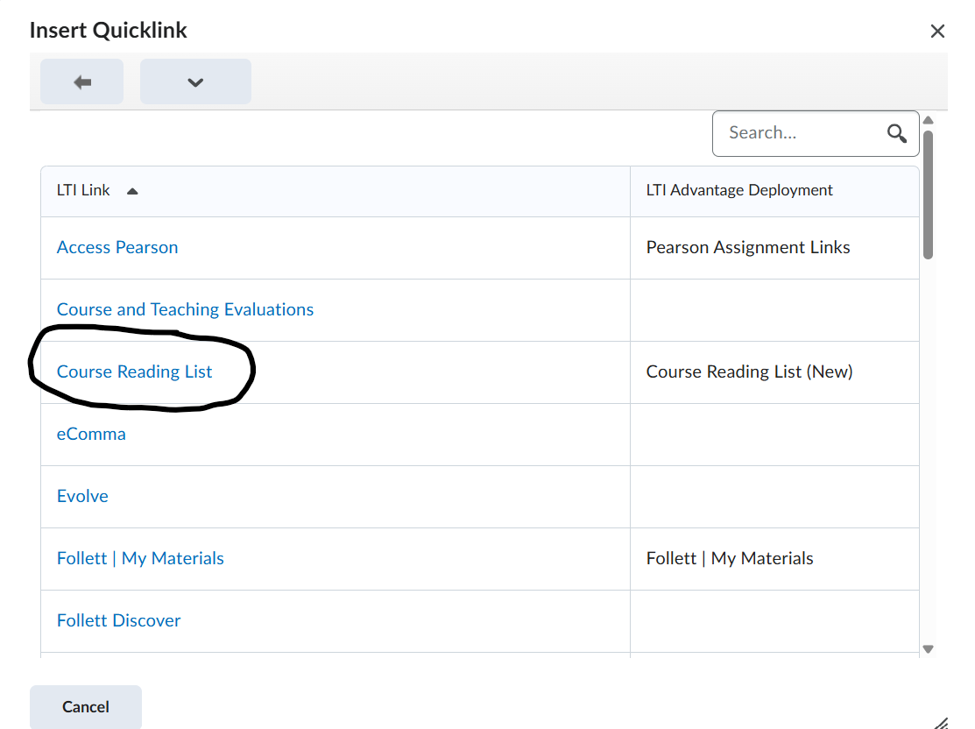
STEP 10 : Then select “Course Reading List”:
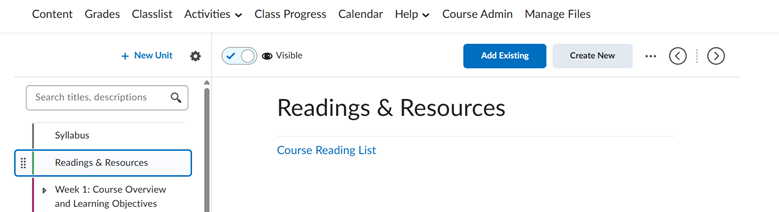
Then is should look like this:
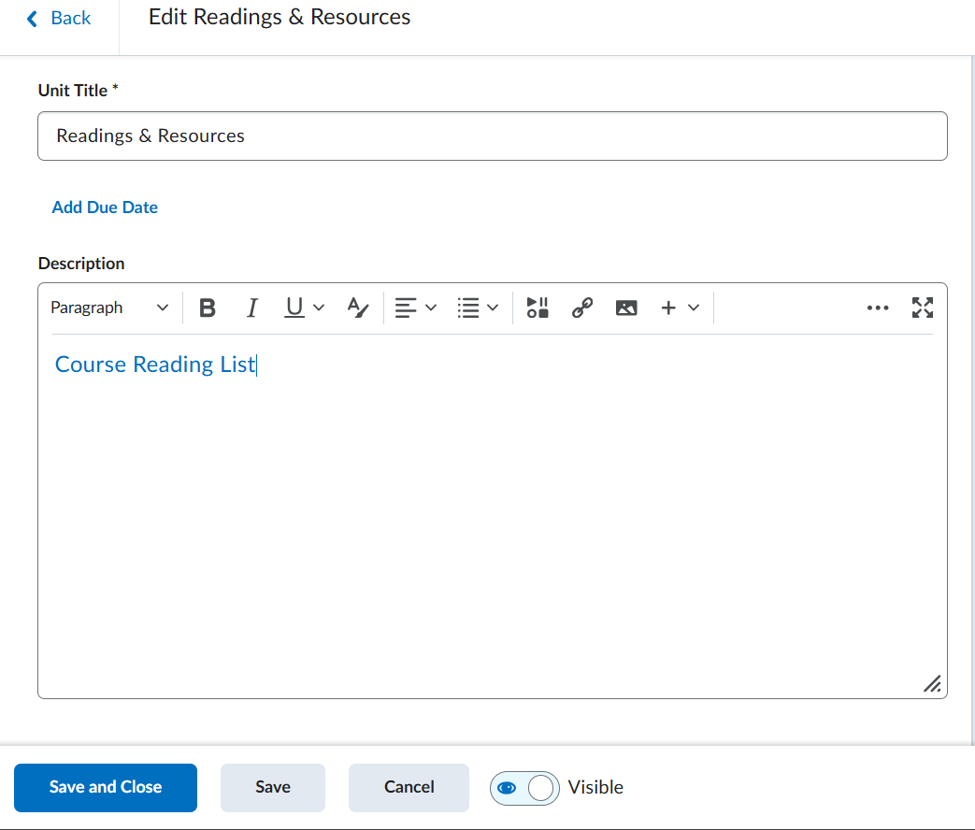
STEP 11 : Then click “Save and Close”:
Now you are linked to Leganto. If a course reading has been created for the course, the link should bring it up: